beta waitlist open
Your knowledge layer for everything you hear, say and jot down.
wingmin listens to your meetings and calls, takes your notes, and turns them into key points, decisions and tasks you can search and ask about. On iPhone, Apple Watch, Mac, Windows and the web, kept in your own data.
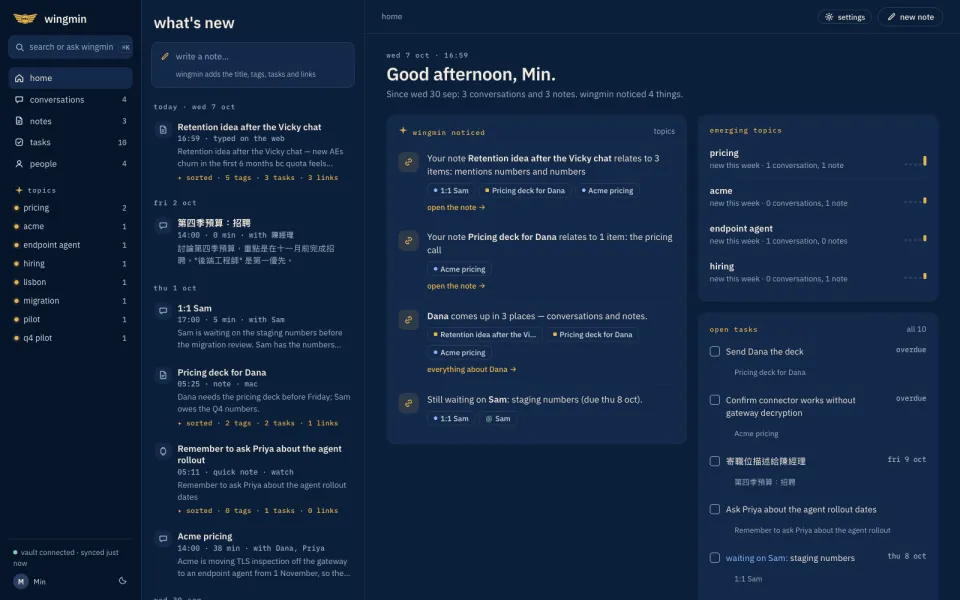
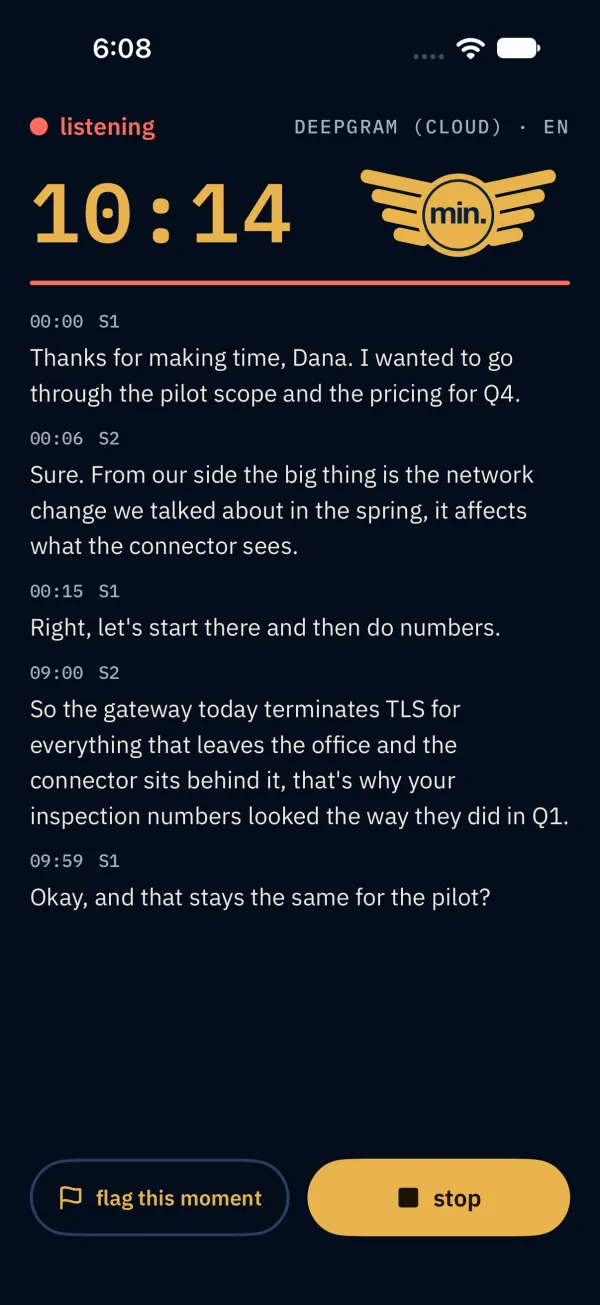
- iPhoneRecord, review, notes, widgets and Control Center.TestFlight beta
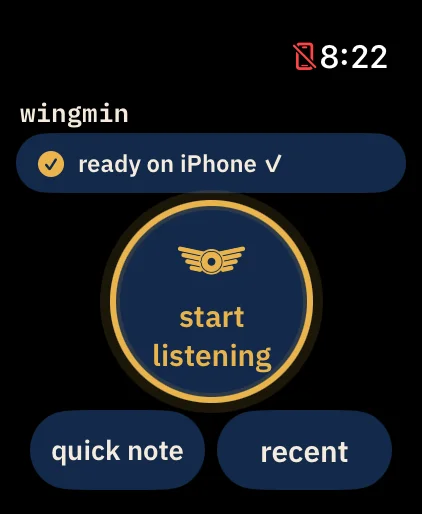
- Apple WatchUltra first. The Action Button starts listening.TestFlight beta
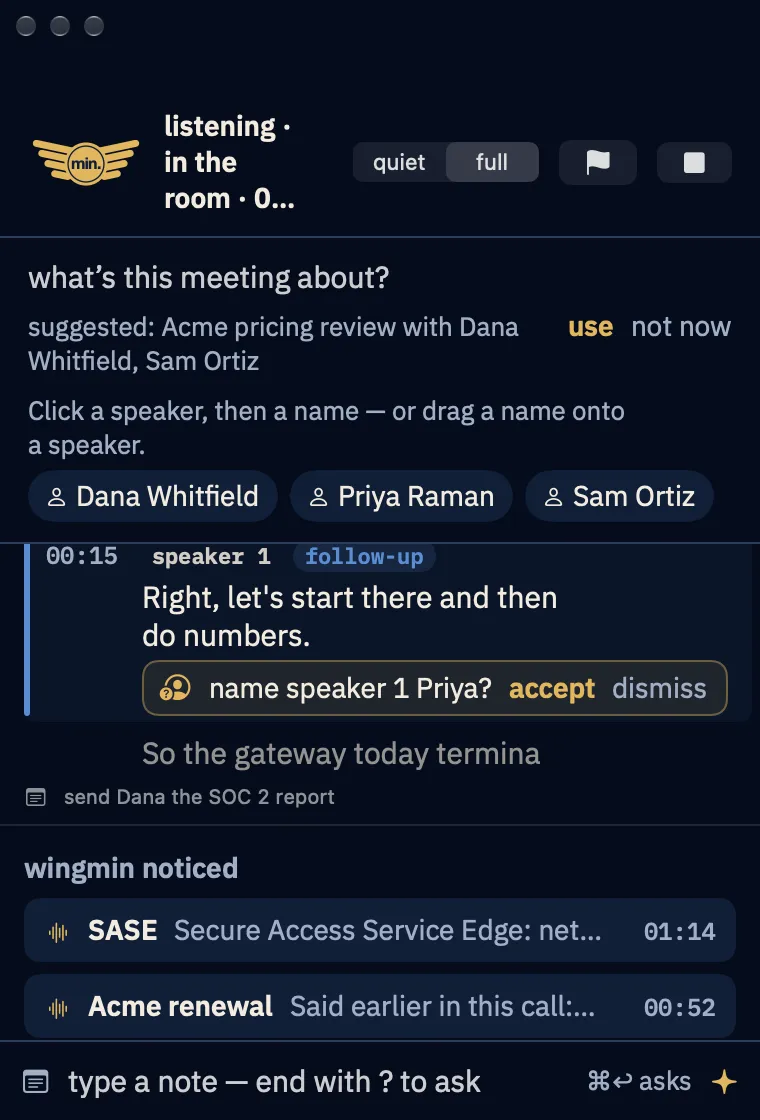
- MacMenu bar, floating panel, calls with both sides.TestFlight beta
- Windows 11Tray, call capture, free speech-to-text on the PC.early build
- WebSelf-hosted next to your own vault.self-hosted
capture
Catch it where it happens.
In the room, on a call, on your wrist or in a two-second note. wingmin records only when you start it, and shows that it is listening.
- Meetings and calls, both sides
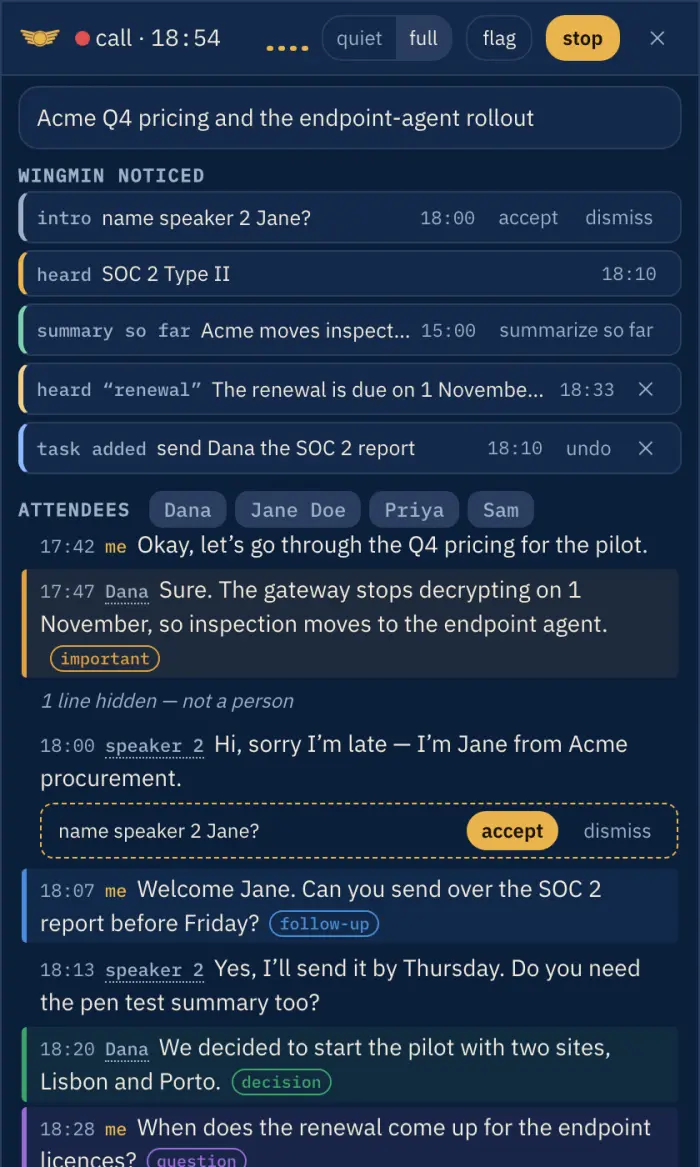
On Mac and Windows, a call is recorded as two channels, your microphone and the call’s sound, so “me” and “them” stay apart in the transcript. When a call app starts using the microphone, wingmin offers to listen. It never records without a click.
- A live transcript you can fix as it runs
Click a speaker to name them, merge two labels that are one person, or mark a line as not a person. When someone says “I’m Jane from Acme”, wingmin suggests the name; it never applies it by itself.
- Flag the moment
Mark a line as important, follow-up, question or decision with a click, ⌘1–⌘4, the Watch’s flag button or a Double Tap pinch.
- Say it, and it’s written down
“Note that…”, “remind me to…”, “action item for Sam…” become a note or a task linked to the meeting, with an undo. A keyword watch alerts you when a word you care about comes up.
- Notes in a second
A global hotkey on Mac and Windows opens a note over any app. On iPhone: widgets, Control Center and the Action Button. On the Watch: dictation or a voice note.
- The Watch on its own
Press the Action Button and talk. With the iPhone in another room, the Watch uploads over Wi-Fi or cellular, or keeps the audio and hands it over later.
understand
Talk becomes structure.
When you stop, AI reads the transcript and writes up what happened. While you are still talking, it helps live.
- Key points that follow your structure
Say “three things” and you get three key points, in your order, each with its own parts underneath. Without a structure, the talk is regrouped into its main topics.
- Summary, decisions, tasks, people
Who decided what, who took which task, what you are waiting on, and the dates that came up. Each item links back to the words and the moment it came from.
- Your notes steer it
Notes you type or say during the meeting count as the strongest signal: the key points cover them, and the review keeps them as “my notes” with their times.
- Answers during the meeting
Say “what is SASE?” or type a question ending in “?”, and an answer card appears in the panel, using what the meeting is about.
- A rolling summary
Every 15 minutes, or when you say “summarize so far”, so you can catch up after stepping out.
remember
Findable. Askable.
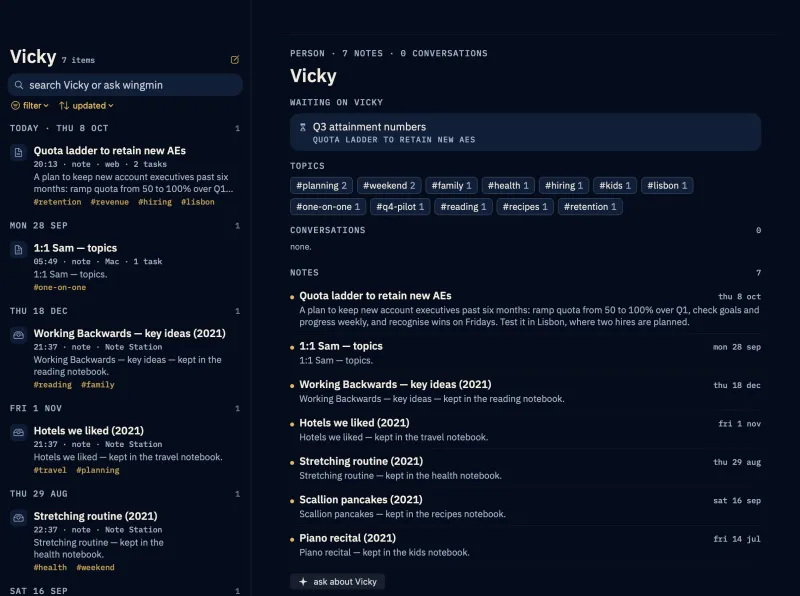
One box searches everything. End with a question and wingmin answers from your own conversations and notes, citing where each part came from.
- Search or ask wingmin
Across every conversation and note on your devices. Answers link to the cited moment in a meeting or to the note, and your questions are kept as an ask history you can delete.
- Notes that organise themselves
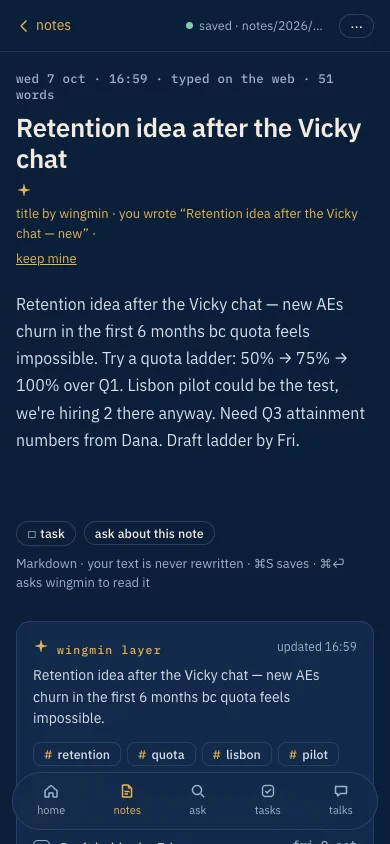
Type freely. wingmin adds a title, a summary, topics, people, tasks and links to related notes, and never rewrites your text. Prefer your own markup?
#tag,[ ]and[[link]]are always kept. - Topics instead of folders
Each topic gathers its notes and conversations under a short summary that stays up to date.
- People and mind maps
A page per person: when you last talked, what you owe them, what they owe you, open questions. Every analysed meeting gets a mind map.
- A decision log and a weekly review
With a vault connected, wingmin also keeps every decision by month and topic, with who made it, and writes a review of your week on Friday afternoon.
act
From talk to to-do.
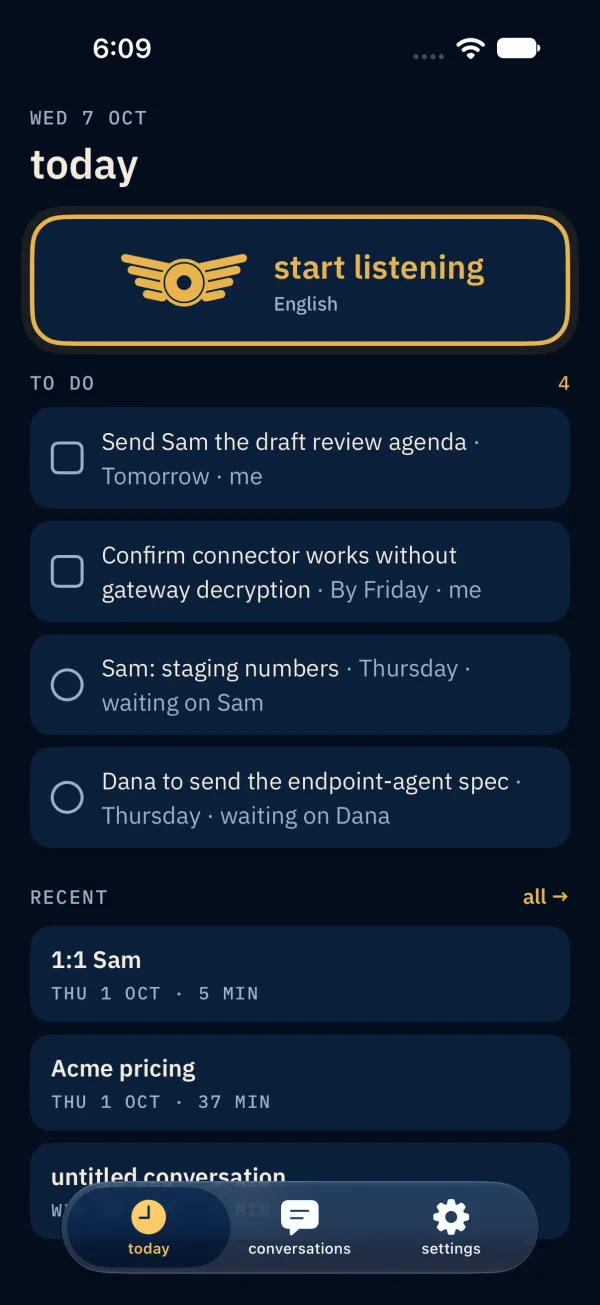
Today shows what is yours to do and what you are waiting on, from meetings and notes alike.
- One to-do list
Tasks, waiting-ons and the tasks inside your notes, with due dates. Tick them off in the app, in the web app or in Obsidian.
- Reminders and Calendar, after you confirm
Tasks and dates go to Apple Reminders and Calendar only when you say so.
- Follow-ups you send yourself
Draft a follow-up email from a meeting; it opens in your mail app and is never sent automatically. Shortcuts actions start listening, add a note or list your open tasks.
privacy
Built so secrets don’t travel.
What runs where is written down on how wingmin decides, and the policy is on the privacy page.
- Secrets are redacted before cloud AI
Passwords, card and account numbers, ID numbers and API keys are replaced with placeholders such as
[password]on your device before any text goes to a cloud model. Your stored text is untouched. - Keep a note off cloud AI
One switch, or a
#privatetag, and that note is only ever processed on your device, and left out of topic pages, reviews and answers. - A server that keeps no content
wingmin’s server relays speech and AI requests and counts usage. It does not store your conversations, transcripts, notes or vault password.
- End-to-end encrypted vault handoff
Moving your vault connection to a Windows PC is sealed on your iPhone for that PC alone; the server only passes on ciphertext, for at most five minutes.
- Training opt-out
Every request to Deepgram, wingmin’s default speech service, asks it not to use your audio to train models.
- No ads, no trackers
No third-party analytics or advertising code in the apps or on this site. One switch turns all AI off.
Or skip the cloud for speech: Apple speech and Whisper run on the iPhone, and Windows can transcribe on the PC for free. Your own keys stay in the device’s secure store and go only to that provider.
your data
Plain files you own.
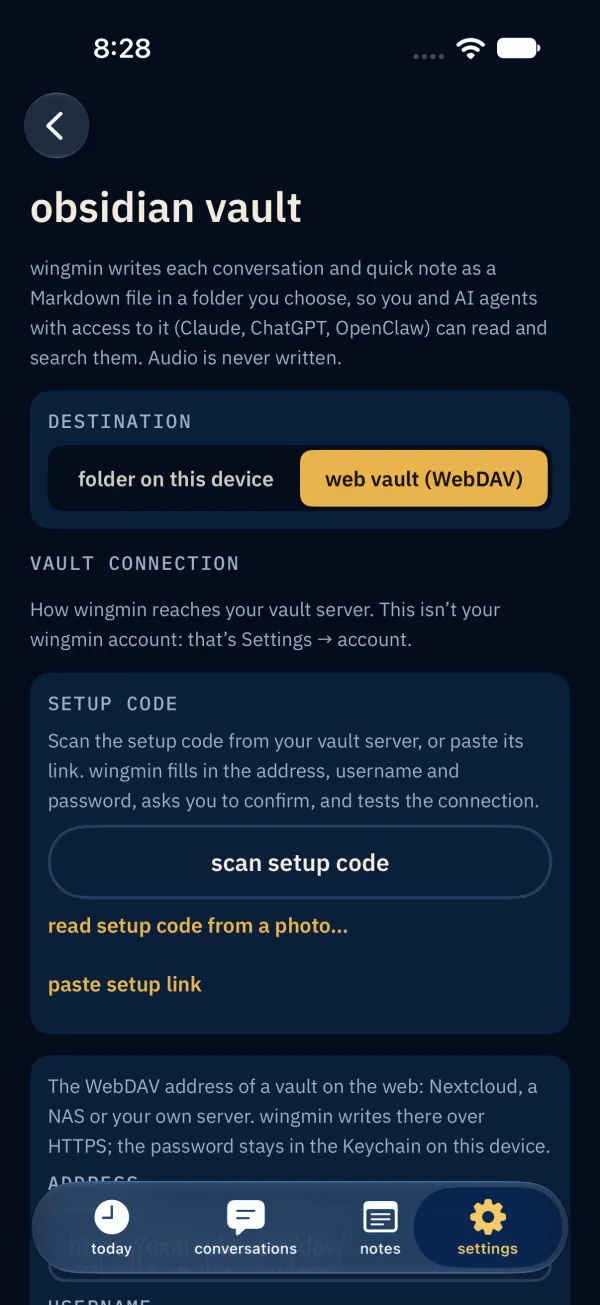
Connect an Obsidian vault, a folder on your device or your own WebDAV server, and wingmin writes everything there as Markdown: conversations, notes, people pages, the decision log, mind maps and reviews. Edit a note in Obsidian and the change comes back; tick a task there and it is done in wingmin. Audio is never written to the vault.
Obsidian is optional. iPhone, Apple Watch and Mac work on their own and sync conversations through your iCloud. Notes sync between devices through a vault; without one, they stay on the device you wrote them on.
Set up once: scan a setup code from your vault server, and your other Apple devices offer the same connection through iCloud Keychain. A Windows PC gets it from your iPhone, end-to-end encrypted.
wingmin/
  conversations/2026/10/  # one Markdown note per meeting
  notes/2026/10/          # your notes, AI layer underneath
  people/Dana.md          # your text kept, wingmin's block updated
  topics/  maps/  reviews/  answers/
  decisions.md  tasks.md
Questions
Do I need Obsidian?
No. The Apple apps work on their own and sync conversations through iCloud. A vault adds an open copy of everything in Markdown, note sync between devices, and is what the Windows app and the web app read.
Which devices does it run on?
iPhone and Apple Watch (iOS and watchOS 26), Mac (macOS 26), Windows 11, and a web app you host next to your own vault. iPhone, Watch and Mac are one app on TestFlight; Windows is an early build in testing.
Is it always listening?
No. It records only after you start it, and shows that it is recording. When a call starts on a Mac or PC, it asks first. You are responsible for telling the people you talk with and for the recording laws where you are.
Which languages?
English by default. A finished recording can be processed again as Mandarin, or as Mandarin and English mixed (with Whisper, on the iPhone), in Traditional or Simplified characters.
Can I use my own AI or speech provider?
Yes, on iPhone, Mac and Windows. Enter a key for OpenAI, Anthropic, Gemini, DeepSeek, OpenRouter, Groq, a local Ollama or LM Studio, or any compatible address, and requests go from your device to that provider (on Windows, meeting summaries still use wingmin’s server for now). For speech, use your own Deepgram or OpenAI-compatible key. Results depend on the model you choose.
How do I get in?
Join the waitlist below. Invitations go out from that list by email as places open in the beta.
beta
Join the beta waitlist.
Leave your email and we will invite you when there is a place. Telling us which devices you use helps us invite people whose setup we can support first.
Questions? minhsao@mintrix.net
You’re on the list.
We’ll email you when there is a place in the beta. Nothing else.
Changed your mind? Write to minhsao@mintrix.net and we’ll remove you.